
Keyboard Overlay Settings
Guide to keyboard overlay configuration, themes, and game capture in EasySpecy.
Overview
EasySpecy's keyboard overlay captures and displays your keystrokes in real-time during recording. Perfect for tutorials, demonstrations, and educational content where viewers need to see what keys you're pressing.
Architecture
Keyboard Hook
EasySpecy uses the Windows Low-Level Keyboard Hook (WH_KEYBOARD_LL) to capture keystrokes system-wide, rendering bubbles live on screen:
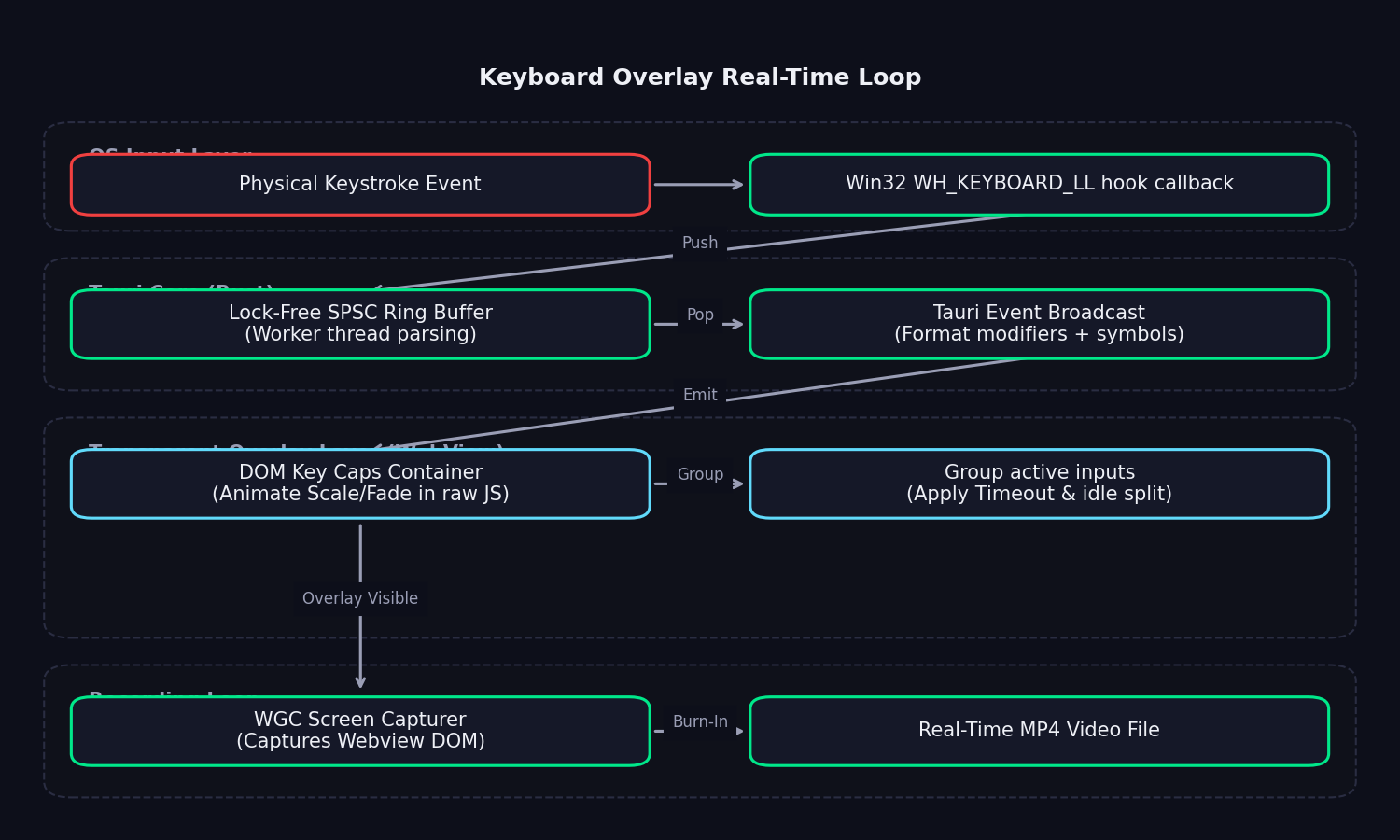
The system operates in five key steps:
- Hook Callback: Captures raw virtual key codes system-wide. The Win32 callback executes in
<1μs(zero allocations, zero mutex locks). - Ring Buffer: Keystrokes are instantly pushed to a thread-safe, 1024-entry lock-free SPSC (Single Producer Single Consumer) ring buffer.
- Rust Worker Core: The SPSC queue wakes up a background worker thread that resolves modifier combinations (Ctrl, Shift, Alt, Win) and formats Unicode key event symbols.
- Tauri IPC Broadcast: Key event packets are broadcast instantly as Tauri IPC events to the Webview overlay.
- Real-Time Webview Overlay: An incremental event processor inside
overlay.htmlreceives events, groups characters into active typing boxes, handles backspaces/shortcuts, and inserts bubble elements into the DOM with fade and scale animations. WGC records the transparent Webview overlay live as part of the video.
Performance Design
The keyboard hook is optimized for zero latency and minimal overhead:
- Callback Hook: Executed in
<1μsto prevent OS-level keyboard lagging. - Worker Thread: Sleeps (parks) when no keys are pressed, consuming 0% CPU.
- Overlay Window: Renders bubbles directly into the GPU compositor using raw JS DOM manipulation, avoiding React overhead and minimizing memory usage.
- Recording Overhead: <0.1% CPU during screen capture.
Configuration
Basic Settings
# Enable overlay
keyboard_overlay_enabled = true

# Game capture (requires admin)
keyboard_game_capture = falseAppearance
# Theme preset
keyboard_overlay_theme = "speccy-classic"

# Font
keyboard_overlay_font_family = "JetBrains Mono"
keyboard_overlay_font_size = 14

# Container
keyboard_overlay_opacity = 0.9
keyboard_overlay_width = 360
keyboard_overlay_corner_radius = 8
keyboard_overlay_border_width = 1

# Colors (for custom theme)
keyboard_overlay_background_color = "rgba(20, 20, 20, 0.75)"
keyboard_overlay_border_color = "rgba(140, 140, 140, 0.15)"
keyboard_overlay_text_color = "#e5e5e0"Behavior
# Maximum visible key bubbles
keyboard_overlay_max_bubbles = 4

# Bubble timeout (milliseconds)
keyboard_overlay_bubble_timeout_ms = 3000Positioning
# Coordinates (relative to recording resolution)
keyboard_overlay_x = 780   # Center for 1920px width (1920 - 360) / 2
keyboard_overlay_y = 960 # Bottom for 1080px height (1080 - 120)Theme Presets
EasySpecy includes 4 built-in theme presets plus a custom option.
Speccy's Classic
Default theme with subtle glassmorphism:
| Property | Value |
|---|---|
| Background | rgba(20, 20, 20, 0.75) |
| Border | rgba(140, 140, 140, 0.15) |
| Text | #e5e5e0 |
Best for: Professional tutorials, coding demonstrations
Light Glassmorphism
Bright, translucent overlay:
| Property | Value |
|---|---|
| Background | rgba(255, 255, 255, 0.65) |
| Border | rgba(0, 0, 0, 0.12) |
| Text | #1c1b1b |
Best for: Light-themed UIs, accessibility
Neon Cyberpunk (Green)
Vibrant green glow effect:
| Property | Value |
|---|---|
| Background | rgba(9, 11, 20, 0.85) |
| Border | #00e88a |
| Text | #85ffb4 |
Best for: Gaming content, tech reviews, energetic presentations
Neon Vaporwave (Purple)
Purple neon aesthetic:
| Property | Value |
|---|---|
| Background | rgba(15, 11, 28, 0.85) |
| Border | #a855f7 |
| Text | #c0c1ff |
Best for: Creative content, design tutorials, artistic videos
Custom Theme
Create your own theme:
- Select "Custom Theme Settings" in the theme dropdown
- Adjust background, border, and text colors manually
- Preview updates in real-time
- EasySpecy automatically switches to "custom" when you modify colors
Font Options
EasySpecy supports 5 font families:
| Font | Category | Best For |
|---|---|---|
| JetBrains Mono | Monospace | Coding, technical content (recommended) |
| Inter | Sans-serif | Clean, modern UI |
| Times New Roman | Serif | Formal, academic content |
| Comic Sans MS | Casual | Informal, friendly tone |
| Algerian | Decorative | Artistic, stylized content |
Font Size
Adjust keyboard_overlay_font_size (default: 14):
- 12: Compact, minimal
- 14: Default, balanced
- 16: Large, highly visible
- 18+: Extra large for presentations
Key Mappings
EasySpecy uses Unicode symbols for modifier keys by default:
| Key | Display | Unicode |
|---|---|---|
| Ctrl | ⌃ | U+2303 |
| Shift | ⇧ | U+21E7 |
| Alt | ⌥ | U+2325 |
| Win | ⊞ | U+229E |
| Enter | ↵ | U+21B5 |
| Backspace | ⌫ | U+232B |
| Space | ␣ | U+2423 |
| Esc | ⎋ | U+238B |
Custom Mappings
Override default mappings by editing the JSON string in config:
keyboard_overlay_key_mappings = '{"Ctrl":"^","Shift":"Shift","Alt":"Alt","Win":"Win","Enter":"Enter","Backspace":"Back","Space":" ","Esc":"Esc"}'This will display "Ctrl+A" instead of "⌃A", for example.
Bubble System
How Bubbles Work
When you press a key:
- EasySpecy captures the keystroke via keyboard hook
- Key event is sent to frontend via Tauri event
- Frontend creates a "bubble" with the key name
- Bubble animates in (scale + fade)
- After
keyboard_overlay_bubble_timeout_ms, bubble starts fading out - Old bubbles are automatically removed
Active vs Sealed Bubbles
- Active bubble: Updates in real-time as you type (e.g., "Ctrl+A" → "Ctrl+A+B")
- Sealed bubble: Finalized key combination, will fade out after timeout
Max Bubbles
keyboard_overlay_max_bubbles controls how many bubbles are visible simultaneously:
- 1: Only current key shown
- 2-3: Current + recent keys (good for shortcuts)
- 4: Default, shows key sequence
- 5+: Extended history (may clutter UI)
Timeout
keyboard_overlay_bubble_timeout_ms controls how long bubbles persist:
- 1000: 1 second (fast-paced, minimal history)
- 3000: 3 seconds (default, balanced)
- 5000: 5 seconds (extended visibility)
- 0: Never timeout (bubbles accumulate until
max_bubbleslimit)
Idle Split Detection
If you stop typing for > 1.2 seconds, the active bubble is automatically "sealed" and a new bubble starts for the next keypress. This creates natural grouping of key combinations.
Positioning
Manual Positioning
- Open Settings → Keyboard Overlay
- Enable overlay
- Use the preview panel to see current position
- Adjust
keyboard_overlay_xandkeyboard_overlay_y - Preview updates in real-time
Coordinate System
Coordinates are relative to the recording resolution, not screen resolution:
x = 0: Left edge of recording areay = 0: Top edge of recording areax = 1920: Right edge (for 1920px recording width)y = 1080: Bottom edge (for 1080px recording height)
Clamping
EasySpecy ensures the overlay stays within the recording area:
x = max(0, min(recording_width - overlay_width, x))
y = max(0, min(recording_height - overlay_height, y))Common Positions
| Position | X | Y | Description |
|---|---|---|---|
| Bottom Center | (width - 360) / 2 | height - 120 | Default, least obtrusive |
| Bottom Left | 20 | height - 120 | Alternative for left-handed viewers |
| Top Center | (width - 360) / 2 | 20 | For bottom-heavy UIs |
| Top Right | width - 380 | 20 | Minimal intrusion |
Game Capture
Why Admin Privileges?
Some games use Direct3D or OpenGL exclusive fullscreen mode, which blocks standard keyboard hooks. Running as administrator allows EasySpecy to:
- Hook into elevated processes
- Capture keystrokes in fullscreen games
- Bypass anti-cheat restrictions (for supported games)
Enabling Game Capture
- Open Settings → Keyboard Overlay
- Enable "Game Capture" toggle
- EasySpecy prompts for administrator elevation
- Allow the UAC prompt
- EasySpecy relaunches with elevated privileges
Automatic Elevation
EasySpecy detects when admin privileges are needed:
if config.keyboard_game_capture && !is_elevated() {
    if relaunch_as_admin() {
        std::process::exit(0);
    }
}De-escalation
If you disable game capture while running as admin:
if !config.keyboard_game_capture && crate::is_elevated() {
    if crate::relaunch_as_standard() {
        std::process::exit(0);
    }
}EasySpecy will relaunch as a standard user (no admin prompt).
Platform Support
Game capture is Windows-only. macOS and Linux do not have equivalent low-level keyboard hook APIs that work with fullscreen games.
Preview & Testing
Live Preview Panel
The keyboard overlay preview panel provides:
- Typing sandbox: Test how keys display in real-time
- Theme selector: Switch between presets instantly
- Font picker: Preview different fonts
- Color pickers: Adjust colors for custom theme
- Slider controls: Opacity, width, corner radius, font size
- Live bubble rendering: See exactly how bubbles will appear
Testing Your Configuration
Before recording:
- Open Settings → Keyboard Overlay
- Enable overlay
- Type in the sandbox input field
- Verify:
- Keys display correctly
- Theme is readable over your content
- Position doesn't block important UI
- Font size is legible
- Adjust settings as needed
- Save configuration
Test Recording
For final verification:
- Start a 10-second test recording
- Type various keys and shortcuts
- Play back the recording
- Check:
- Bubbles are visible and readable
- Colors contrast with your background
- Position is non-intrusive
- Timing feels natural (adjust timeout if needed)
Troubleshooting
Keyboard hook not working
- Check if
keyboard_overlay_enabled = truein config - Verify EasySpecy has accessibility permissions (Windows doesn't require this)
- Restart EasySpecy
- Check logs at
%APPDATA%\easyspecy\logs\easyspecy.log
Keys not showing in games
- Enable
keyboard_game_capturein settings - Allow the administrator elevation prompt
- Verify game is not using unsupported anti-cheat (some block all hooks)
Bubbles not appearing
- Check
keyboard_overlay_max_bubbles(must be > 0) - Verify
keyboard_overlay_opacityis not 0.0 - Check if another overlay app is interfering (OBS, Discord)
Wrong keys displayed
- Some keyboards report non-standard virtual key codes
- Check key mappings in
keyboard_overlay_key_mappings - Test with a simple key (like "A") to verify basic functionality
Overlay blocks important content
- Adjust
keyboard_overlay_xandkeyboard_overlay_y - Reduce
keyboard_overlay_widthfor smaller overlay - Increase
keyboard_overlay_opacityto make it more transparent - Try a different position (bottom center → top center)
High CPU usage
- Keyboard hook itself is < 0.1% CPU
- High CPU is likely from another component (webcam, encoding)
- Check Windows Task Manager to identify the culprit
- Verify EasySpecy is using hardware encoding (NVENC/QuickSync)
Performance Impact
During Recording
- Hook callback: < 1 microsecond per keystroke
- Ring buffer: Zero-allocation, lock-free
- Worker thread: Zero CPU when idle (thread parking)
- Frontend polling: 60 Hz, debounced
- Total overhead: < 0.1% CPU
Memory Usage
- Ring buffer: 1024 entries × 64 bytes = 64 KB
- Event queue: Dynamic, typically < 100 KB
- Frontend state: < 1 MB (React component state)
Optimization Tips
- Reduce
keyboard_overlay_max_bubblesfor less rendering work - Increase
keyboard_overlay_bubble_timeout_msto reduce animation frequency - Use simpler fonts (Inter > JetBrains Mono) for faster text rendering
Advanced: Ring Buffer Implementation
For developers interested in the implementation:
// Lock-free SPSC ring buffer
const QUEUE_SIZE: usize = 1024;

static mut KEYBOARD_QUEUE: [Option<RawKeyEvent>; QUEUE_SIZE] = [None; QUEUE_SIZE];
static QUEUE_HEAD: AtomicUsize = AtomicUsize::new(0);
static QUEUE_TAIL: AtomicUsize = AtomicUsize::new(0);

// Hook callback (zero allocations, ultra-fast)
#[inline(always)]
fn push_raw_event(vk_code: u32, is_down: bool, timestamp: Instant) {
    let tail = QUEUE_TAIL.load(Ordering::Relaxed);
    let head = QUEUE_HEAD.load(Ordering::Acquire);
    let next_tail = (tail + 1) % QUEUE_SIZE;

    if next_tail != head {
        unsafe {
            KEYBOARD_QUEUE[tail] = Some(RawKeyEvent { vk_code, is_down, timestamp });
        }
        QUEUE_TAIL.store(next_tail, Ordering::Release);

        // Wake up worker thread instantly
        if let Ok(guard) = WORKER_THREAD.lock() {
            if let Some(ref thread) = *guard {
                thread.unpark();
            }
        }
    }
}

// Worker thread (sleeps when idle)
fn keyboard_worker() {
    loop {
        // Park thread until new event arrives
        std::thread::park();

        // Process events
        while let Some(event) = pop_raw_event() {
            let key_event = process_event(event);
            send_to_frontend(key_event);
        }
    }
}The keyboard system is designed for zero overhead during recording. All heavy work (key name lookup, modifier state tracking, frontend communication) happens on the worker thread, not in the hook callback.
Platform Support
Windows (Full Support)
- ✅ All features (hook, game capture, overlay rendering)
- ✅ Administrator elevation for game capture
- ✅ Unicode key mappings
- ✅ Custom themes and fonts
macOS (Not Yet Implemented)
- ❌ Keyboard hook (requires different API:
CGEventTap) - ❌ Game capture (not supported)
- ❌ Overlay rendering (not yet implemented)
Linux (Not Yet Implemented)
- ❌ Keyboard hook (requires X11/XGrabKey or Wayland protocol)
- ❌ Game capture (not supported)
- ❌ Overlay rendering (not yet implemented)
Recommendation: Keyboard overlay is currently Windows-only. macOS and Linux support requires platform-specific implementations that are not yet complete.